Bold, italic and symbols for posts and comments
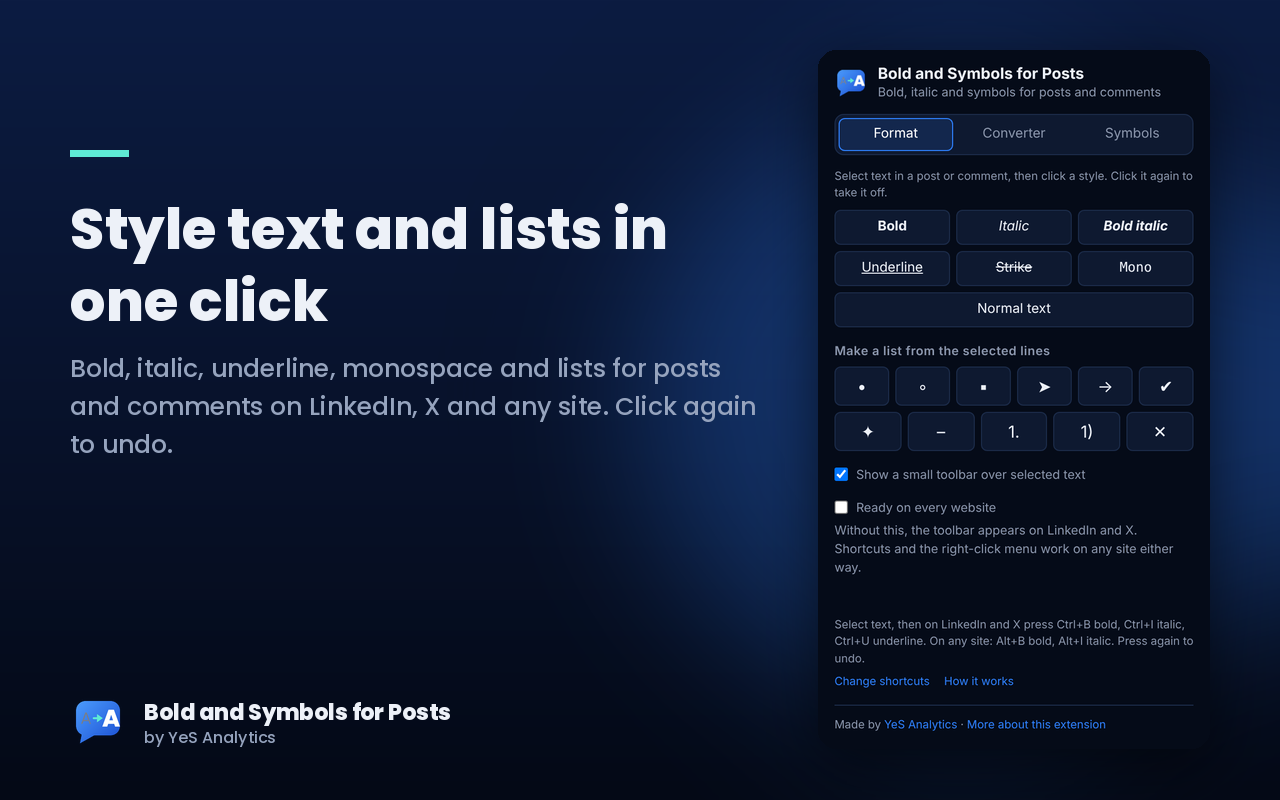
Most post boxes on LinkedIn, X and other sites have no bold or italic button. This extension adds them, plus underline, strikethrough, bullets, arrows and other symbols. Select text, press a shortcut, done.
Free. No sign-up. No data collected.
What it does
Three small things that make posts easier to write and easier to scan.
Bold and italic
Select text in a post or comment and make it bold, italic, underlined, struck through or monospace. Press the same style again to take it off. Turn selected lines into bulleted or numbered lists.
Symbols in one click
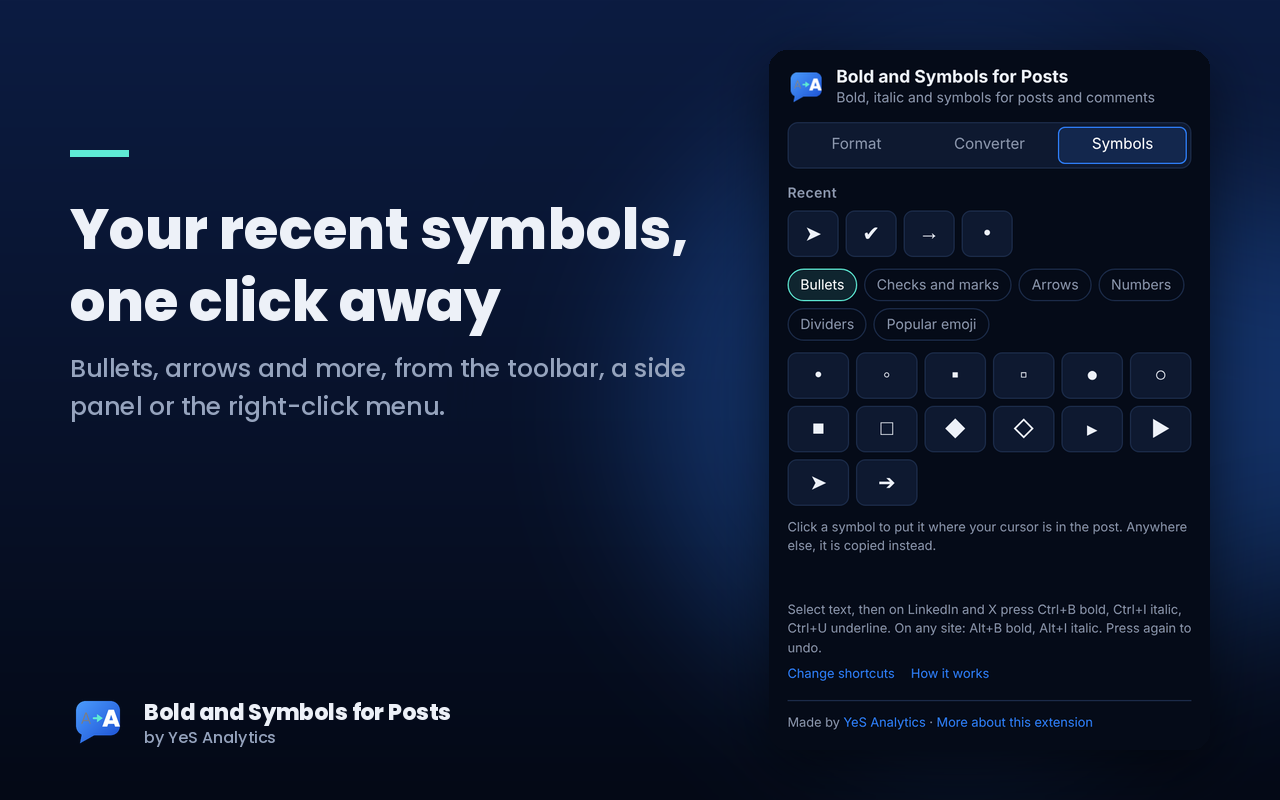
Bullets, arrows, check marks, numbers, dividers and popular emoji. A Recent item in the right-click menu repeats whatever you used last, so repeat jobs take one click.
Side panel, toolbar and shortcuts
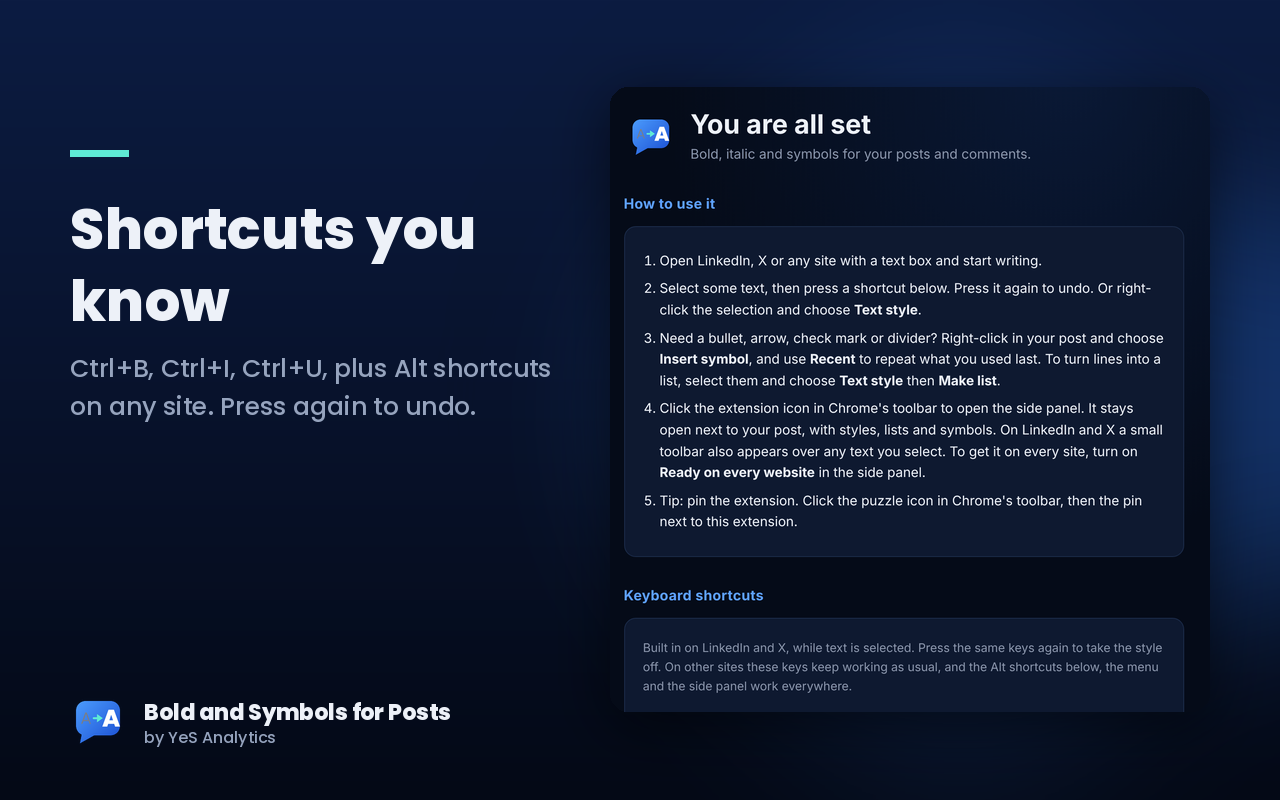
Click the extension icon to open a side panel that stays beside your post. A small toolbar also appears over selected text. Or use the keys you already know: Ctrl + B bold, Ctrl + I italic, Ctrl + U underline. Press again to undo.
How to install and use it
It takes about a minute.
- Open the extension page in the Chrome Web Store and click Add to Chrome.
- Pin it so the icon is always visible. Click the puzzle icon in Chrome's toolbar, then the pin next to Bold and Symbols for Posts.
- Open LinkedIn, X or any page with a text box and write. Select some text and press Ctrl + B for bold or Ctrl + I for italic. On a Mac use Cmd instead of Ctrl. Press the same keys again to undo. Or right-click the selection and choose Text style. On LinkedIn and X the Ctrl keys work. On every other site use Alt + B and Alt + I, the right-click menu or the side panel.
- For a bullet, arrow or check mark, right-click in the post and choose Insert symbol, or click the extension icon and open the Symbols tab.
Prefer other keys? Alt + B and Alt + I work too, and you can change them to anything you like. Open chrome://extensions/shortcuts in Chrome's address bar to set your own.
Questions
Is it really free?
Yes. There is no sign-up, no ads and no paid tier.
Does it collect my data?
No. It works entirely inside your browser and sends nothing anywhere. It reads only the text you select, and only when you use it. Read the privacy policy.
Where does it work?
The extension is ready on LinkedIn and X as soon as the page opens, and works on any other site with a shortcut, the right-click menu or the side panel. If you want the small toolbar everywhere, switch on Ready on every website in the side panel. It runs in desktop Chrome. Chrome on phones does not support extensions, so on mobile use the web converter. The styled text is made of ordinary Unicode characters, so it also shows correctly when pasted into most apps and sites, for example Facebook, Instagram or WhatsApp.
Why does some text show as empty boxes?
The styled letters are regular Unicode characters. A few fonts or older devices do not include them, so a reader may see boxes instead of letters. This is rare on modern devices.
Who makes it?
YeS Analytics. Questions or ideas: [email protected].
Help improve this tool
Found a bug or have an idea for the extension? A site where it does not work, a style or a symbol you miss? Tell us. Every message is read.